Every inquiry from your bio link, tracked in Gmail
Your bio link sends clients, collaborations and orders to your inbox, usually under subjects like "Quick question". How to make inquiries arrive labelled, and how to keep track of each one until it's paid (featuring RenameMail).
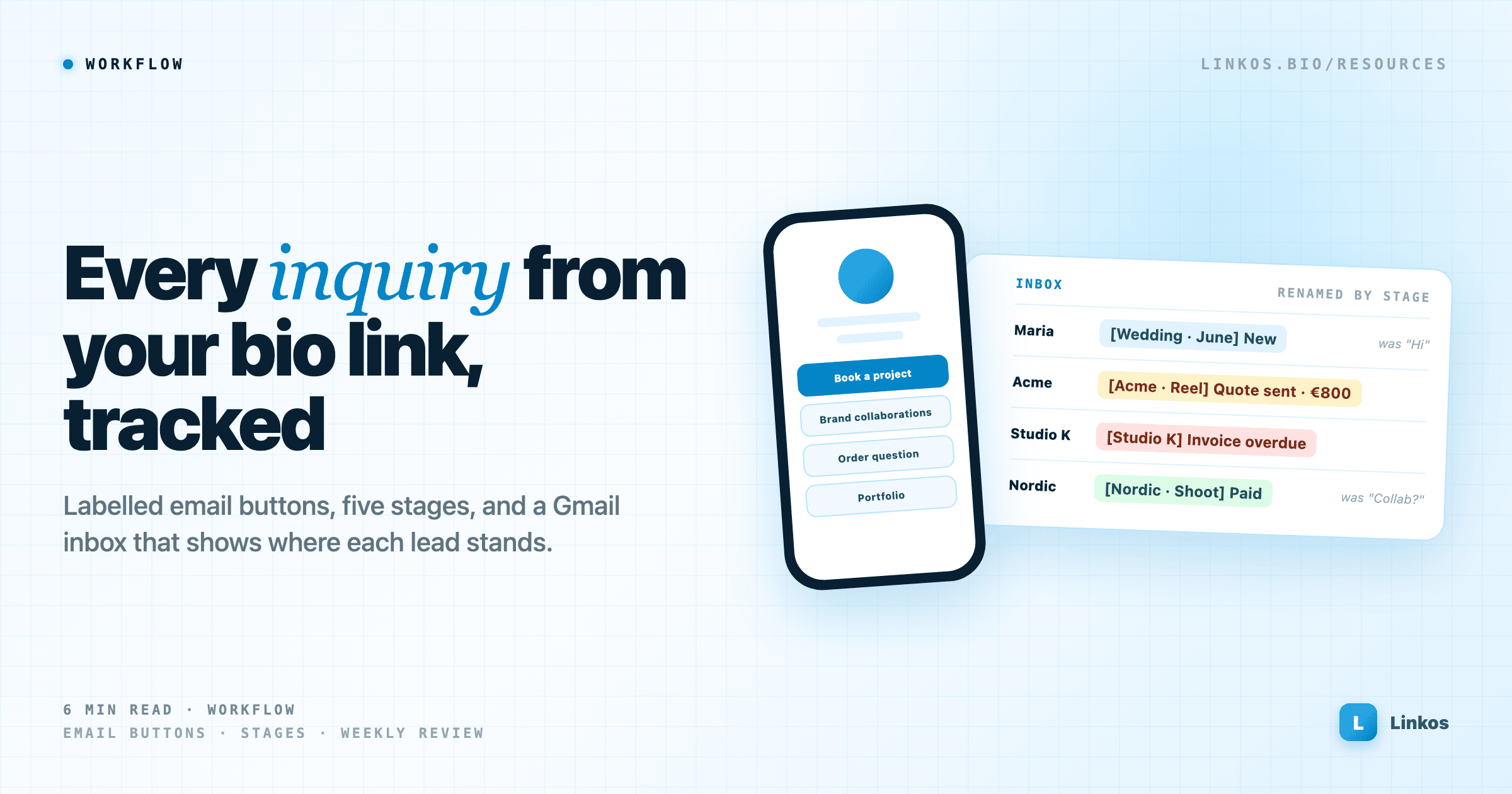
For a freelancer, a coach or a small studio, the most valuable tap on a bio link is often the email button. That's where new clients, brand collaborations and bulk orders come from.
The trouble starts in the inbox. Inquiries arrive with subjects like "Hi", "Quick question" or "Collab?", and three weeks later a client replies to that same thread about an unpaid invoice. The subject still says "Quick question". Leads get lost, follow-ups slip, and you only notice when someone writes "Just checking you got my last email".
This guide covers two fixes: make inquiries arrive labelled, and keep track of each one in Gmail until the work is done and paid. Partway through there's a worked example with RenameMail, a browser extension for renaming and color-coding Gmail threads.
One email button per kind of inquiry
A single "Email me" link mixes everything together: a booking request, a press question and a spam offer all look the same in your inbox.
Split it by what people want. Two or three buttons are enough, for example:
- Book a project
- Brand collaborations
- Order or wholesale question
Each one can open an email to the same address. What changes is the subject line, which is the next step.
Pre-fill the subject and the first lines
On Linkos, add each button as an Email link. It has two optional fields, Subject and Message, and both are filled in when a visitor taps it.
Use the subject as a label you can sort by: "Booking request: " or "Collaboration: ". Most people add their name or brand after it, so the email lands as "Booking request: Maria, wedding in June". In Gmail, you can then search for "Booking request" or set a filter that applies a label automatically.
Use the message for the questions you'd otherwise ask in your first reply:
Date or deadline: Budget: Where did you find me:
A visitor fills in three lines instead of writing from scratch, and you get the details you need in the first email. That alone saves one round of back and forth on most inquiries.
Decide your stages before the inbox fills up
An inquiry goes through the same few steps every time. Write them down once, so every thread can be marked with one of them:
- New: arrived, not answered yet
- Quote sent: waiting for their answer
- Booked: agreed, work scheduled
- Invoice out: work delivered, payment pending
- Paid: done
Five stages are plenty. More than that and you'll stop updating them.
Gmail labels can hold these stages, but labels sit at the end of a long subject line in the inbox, and the subject itself never changes. When a thread has gone from "Collab?" to a signed deal, the inbox still shows "Collab?".
Worked example: renaming threads with RenameMail
RenameMail at renamemail.com is one way to fix that last part. It's a browser extension that lets you rewrite the subject line of any Gmail thread, for your eyes only, and mark it with a color. Here's how it fits the stages above:
- Rename by what it is now: "Collab?" becomes "[Acme · Reel] Quote sent · €800". You edit it from a pencil icon on the inbox row or inside the open thread, and you can hover to see the original subject at any time.
- One color per stage: for example yellow for quote sent, red for an overdue invoice, green for paid. The free plan has 3 colors, Pro has 9.
- Search by color: type
color:greenoris:boldinto Gmail's own search bar to list every thread at one stage. - Senders see nothing: the new subject only shows in your browser. The email itself isn't changed, so replies to the client still use the original subject.
- Replies keep the name: the custom subject is tied to the Gmail thread, so it stays when a new reply moves the thread to the top.
- Private notes: attach a note to a thread, such as "Quoted €800, follow up Friday", without writing it into the email.
On price: the free plan covers up to 20 renamed threads at a time, with no account needed. Pro, for unlimited threads, all 9 colors and sync between browsers, is $1.99 a month or a one-time $19.99. It works in Gmail in Chrome, Arc, Brave, Edge, Vivaldi, Zen and Firefox.
One practical point: the renamed subjects live in your desktop browser, so the Gmail phone app still shows the original subjects. Do the weekly review below at a computer.
See how it works at renamemail.com →
A ten-minute weekly review
Once a week, go through the inquiries by stage:
- New: anything older than two days gets an answer today, even a short one.
- Quote sent: anything older than a week gets one friendly follow-up.
- Invoice out: anything past its due date gets a reminder.
With threads renamed and colored, this takes a few minutes, because the stage is in the subject line instead of somewhere inside a long thread.
Close the loop on your bio link
Your inbox tells you what your bio link should say. If you're fully booked until March, change "Book a project" to "Booking from March: send your dates", so people with an urgent deadline don't wait for an answer you can't give.
Check your link analytics once a month, too. If the collaboration button gets plenty of taps but few emails arrive, the pre-filled message may be too long, or the button may promise something your page doesn't explain.
Checklist
- Split one "Email me" link into two or three buttons by kind of inquiry.
- Pre-fill a subject on each, like "Booking request: ".
- Pre-fill three short questions in the message.
- Write down five stages, from New to Paid.
- Rename and color threads by stage, so the inbox shows where each one stands.
- Review once a week: answer new ones, follow up quotes, chase invoices.
- Update your bio link when your availability changes.
Sign up to start earning XP for every read.
📗 Free: the Link-in-Bio Starter Kit
The checklist, 6 layout templates, and our 1-page cheat sheet — sent straight to your inbox.
Recommended tool
Turn each topic into a finished post — in seconds.
PostPop writes the copy and designs the carousel in your real colours, fonts and logo. The making step, gone.
- On your brand, automatically
- Six formats · every platform size
- Free to start · no credit card
◆ A product by Linkos