Unlimited markdown to PDF — free, no watermark
Free, unlimited markdown-to-PDF. Pick a theme, download. No watermarks, no signup, no per-doc limit.
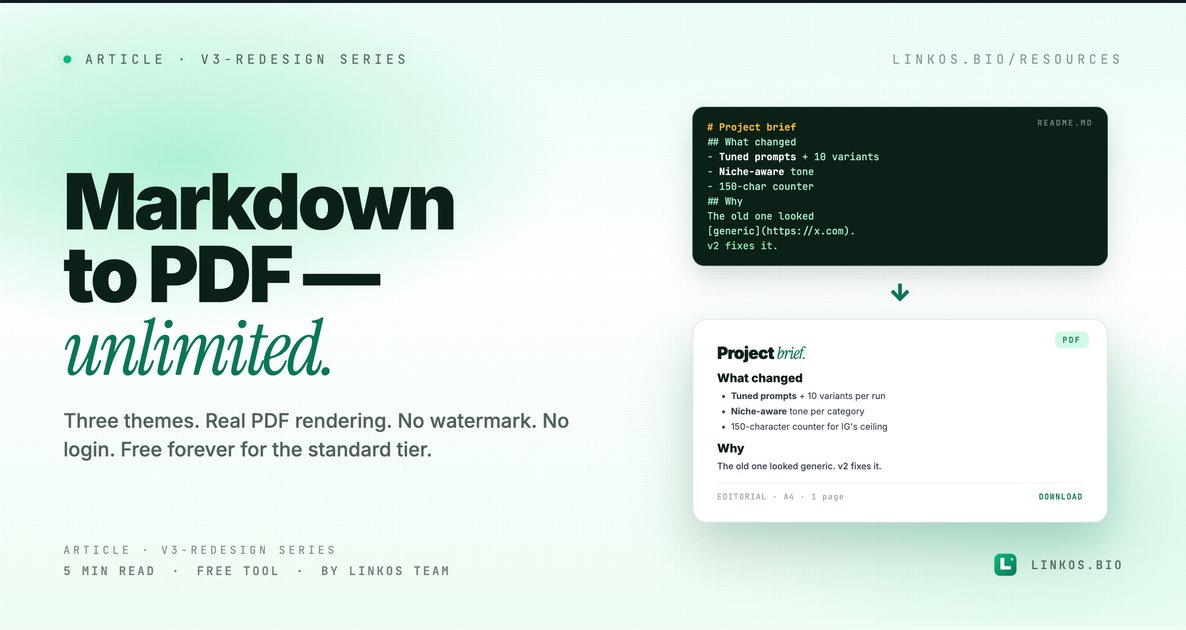
We shipped the markdown-to-PDF tool we've always wanted. Paste markdown, pick a theme, download a PDF. Unlimited. Free. No watermark on the standard tier — and if you ever need a premium theme or bulk export, it's $0.99 for a 7-day pass.
If you just want the tool, it's at linkos.bio/tools/markdown-to-pdf.
What this tool actually does
Three things, all visible the moment you open it.
- Real PDF rendering, not a screenshot. Headings, bold, italic, code, links, lists, tables, blockquotes — every markdown element renders as proper PDF structure. Selectable text. Searchable in Preview. Survives copy/paste.
- Three themes, all on-brand. Editorial (Linkos default — Inter + serif accents), Mono (technical docs, monospace body), and Resume (tight margins, two-column metadata). Pick the one that matches what you're shipping.
- Live preview that matches the output. What you see in the right pane is what the PDF will be. We just shipped a fix to tables — borders + header rows now render in the preview exactly like the PDF.
No login required. Drop in your markdown, hit download. Most jobs take under 10 seconds.
Why this tool exists
Every other markdown-to-PDF service either watermarks the output, locks the good themes behind a paywall, throttles you after 3 uses, or produces PDFs that look like 2008.
We needed one we'd actually use ourselves for docs, contracts, one-pagers, and meeting summaries. So we built it, kept it free, removed the watermark, and shipped three themes that don't look like template defaults.
The 5 things that make a markdown PDF actually good
If you only have 60 seconds, here are the patterns that separate a PDF that looks ready-to-ship from one that gets sent back for "design polish."
- One H1, multiple H2s. Your document has one title (
# Title), then sections (## Section). Multiple H1s break the visual hierarchy and confuse screen readers + Acrobat outline navigation. - Keep lines under 100 characters in source. PDF rendering wraps long lines unpredictably. Short source lines = predictable output. Tables especially benefit from this.
- Use code blocks for code, not inline backticks. Triple-backtick fenced code blocks get monospace + background. Inline backticks are for
IDsorcommand namesinside prose. - Tables need pipes + headers. GFM tables (
| Header | Header |) render with borders, headers, and zebra stripes. Just-text-with-spaces doesn't render as a table — it renders as preformatted text. - Use blockquotes sparingly. A pull quote here and there reads well. Blockquoted paragraphs throughout look like the document is shouting at you. Save them for actual quotes.
Pop quiz · 5 questions · ~60 seconds
Do you know markdown well enough to ship a PDF?
Answer 5 multiple-choice questions. See your tier at the end. Bragging rights optional.
How to use the tool
The flow is one screen, three steps.
- Open the tool at linkos.bio/tools/markdown-to-pdf.
- Paste your markdown in the left editor. Live preview updates as you type.
- Pick a theme (Editorial / Mono / Resume) — then Download PDF. That's it.
If you want the brand-v3 emerald accent (the default), leave theme on Editorial. For dev docs, switch to Mono. For a one-page CV, Resume.
Try the tool
Open the markdown to pdf tool — free, no signup
When markdown-to-PDF is the right tool
Use it when:
- You wrote something in markdown (notes, docs, drafts) and need it as a PDF to email or print.
- You want a one-pager that reads better as a document than as a webpage (project briefs, meeting summaries, proposals).
- You're shipping a downloadable resource (lead magnet, white paper, gated guide).
- You need a CV in 30 seconds and don't want to fight Microsoft Word.
Skip it when:
- The destination is web-only — markdown is already great on the web; converting adds friction.
- You need pixel-perfect layout (multi-column magazines, dense infographics). Use InDesign for those.
- The document has heavy media (full-bleed images, video thumbnails). Markdown handles inline images, but layout-heavy work belongs in Figma → export.
Common questions about markdown-to-PDF
Will my PDF have a watermark? No. The standard tier produces clean PDFs. The watermark only existed in earlier versions to nudge people toward Pass — we removed it. Linkos prefers a clean default over a friction-based upsell.
What's the page size? US Letter (8.5×11"). A4 export is on the roadmap — message contact@linkos.bio if you need it sooner.
Can I include images? Yes — paste a markdown image link () and it'll render. Local image upload is on the roadmap.
What's the Premium Pass? A 7-day pass at $0.99 that unlocks bulk export (multiple files at once), some additional themes, and removes any rate limiting on heavy days. Skip it if you only need occasional one-off PDFs.
Does it preserve links? Yes — markdown links render as clickable hyperlinks in the PDF. The URL is shown in light gray after the link text so it survives printing.
How big can my markdown be? 100,000 characters per document — about a 30-page PDF. For larger, split into multiple documents.
A note on the editorial theme
The default Editorial theme uses the same type system as the rest of brand v3 — Inter for body, Instrument Serif italic for display accents (matches our brand-v3 launch). If you're shipping anything Linkos-adjacent, it'll look on-brand without any extra work.
Related resource
Download / open: link-in-bio-playbook-2026
Questions or stuck on a specific markdown pattern? Email contact@linkos.bio — we read every reply.
Sign up to start earning XP for every read.